
Managing Streams
Starting a Stream
Section titled “Starting a Stream”Tap the event in the Events list to open the event details screen.
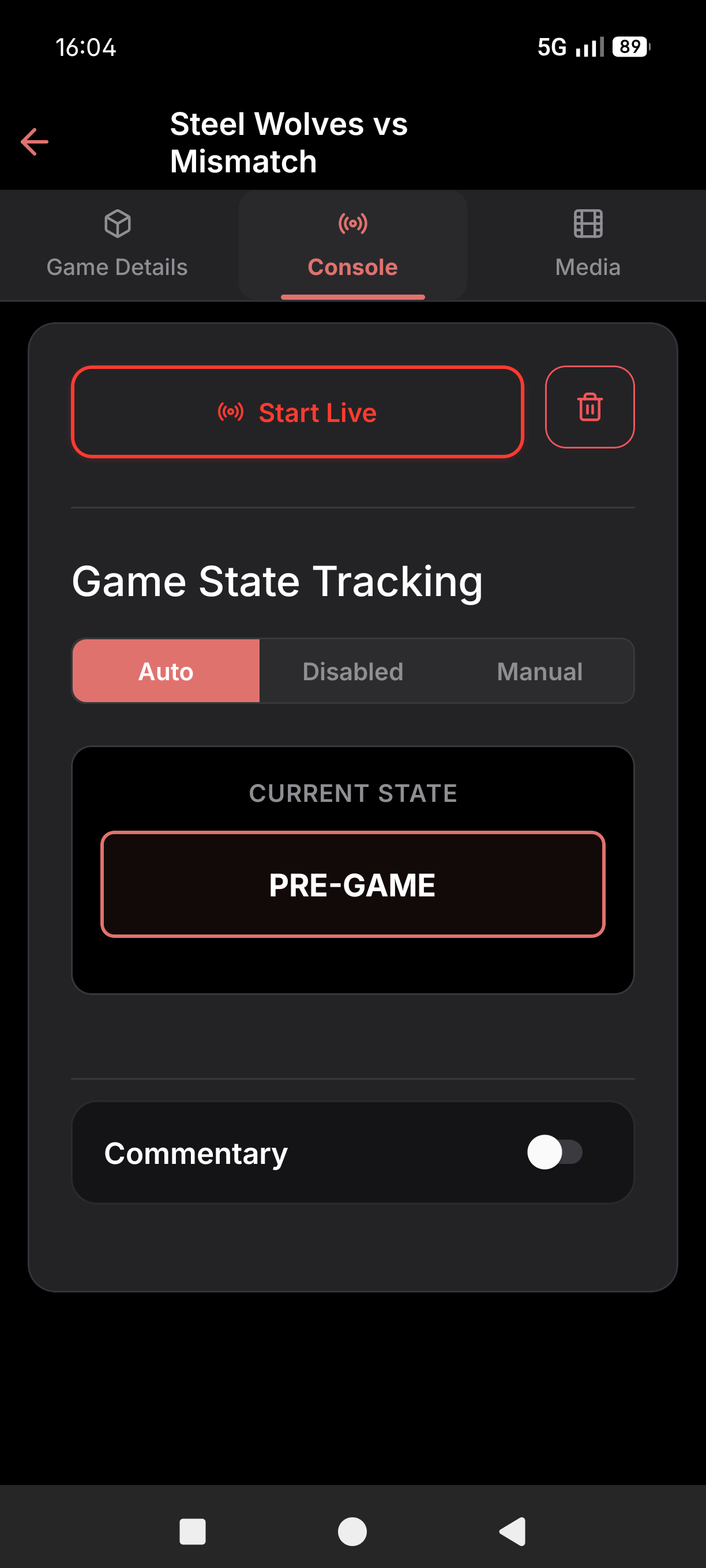
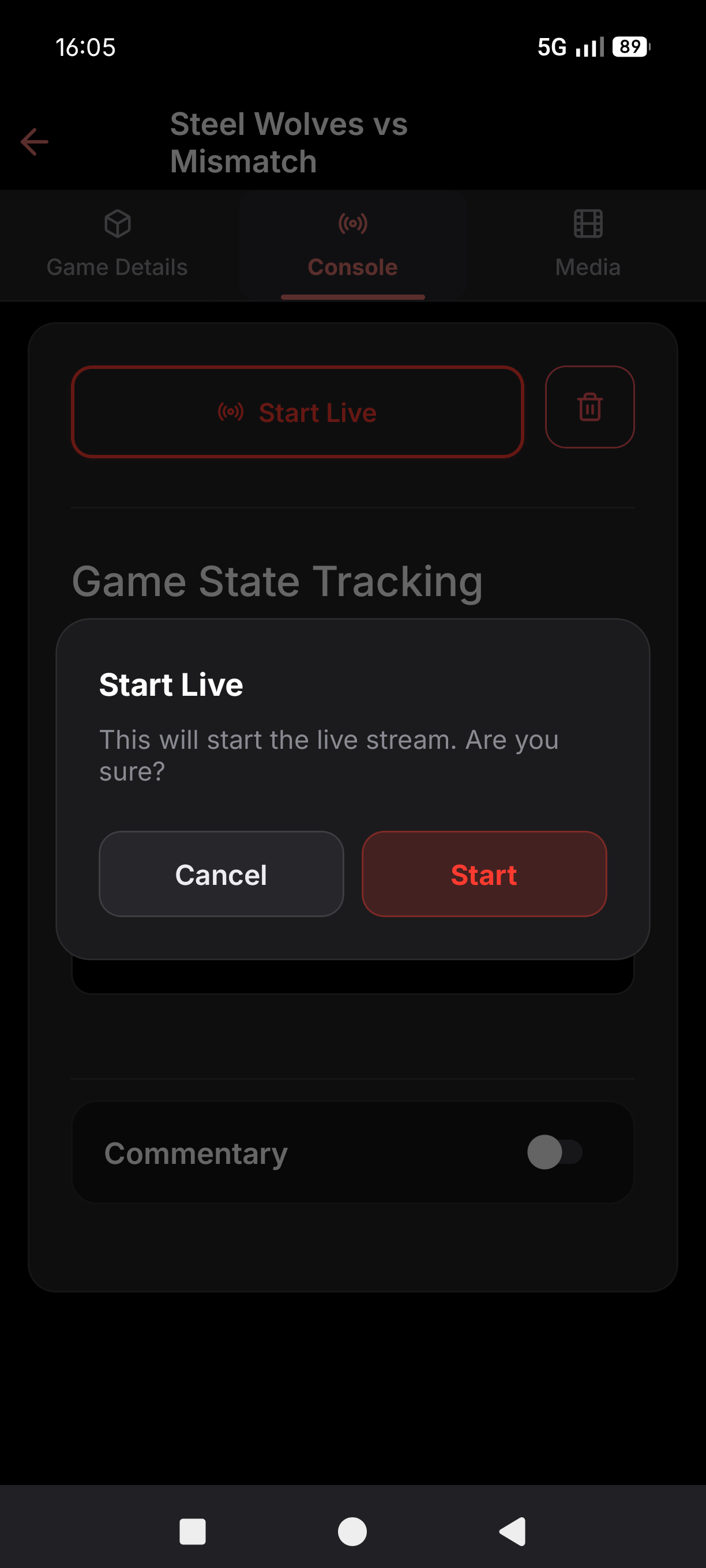
Tap “Start Live” in the Console tab and confirm when prompted. Initialization takes approximately 5 minutes, after which the stream goes live automatically.
Live Controls
Section titled “Live Controls”Once the stream is active, all controls are available in the Console tab.
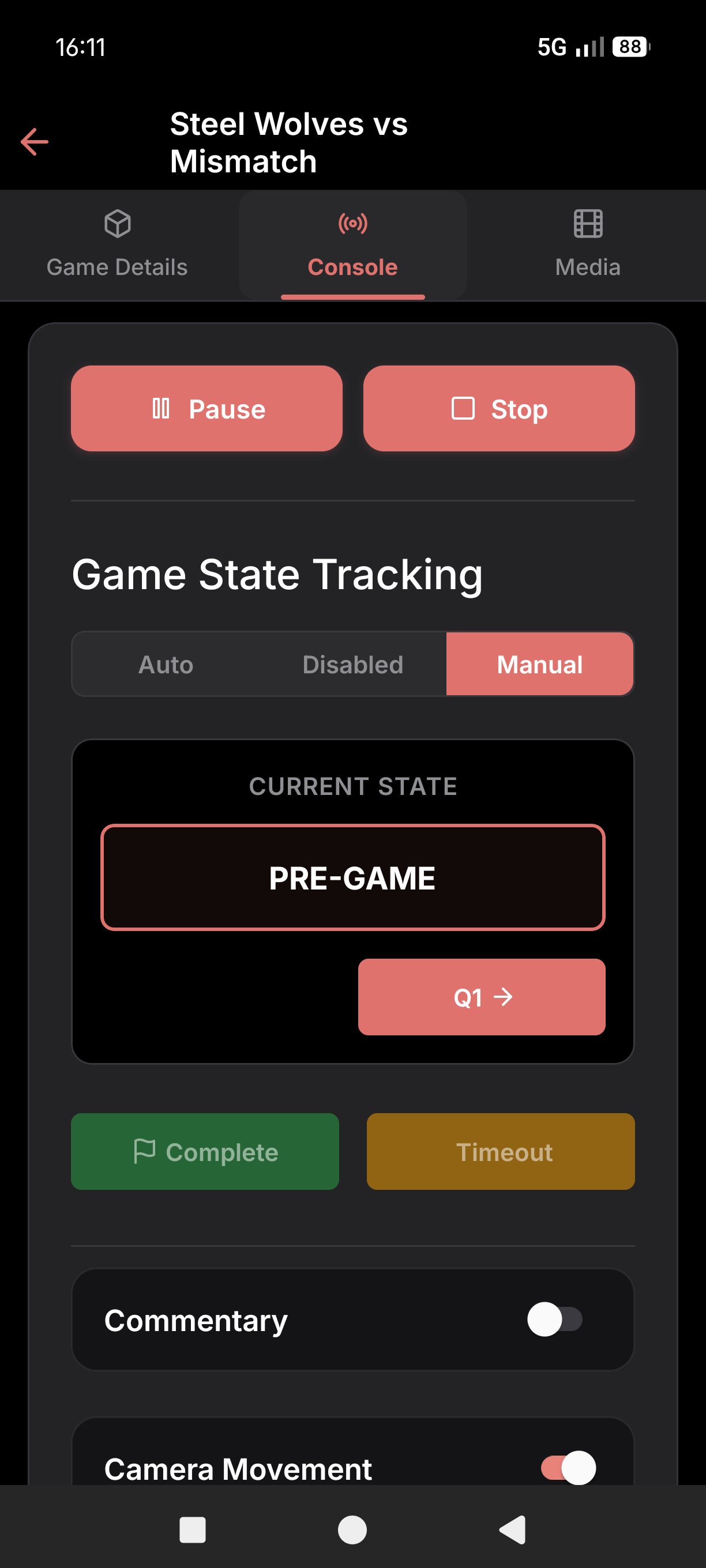
Available controls:
- Microphone toggle: Switch between ambient (camera mic) and commentary (external mic) audio
- Pause: Displays a paused banner to viewers; tap again to resume
- Stop: Ends the stream
- Advertisement videos: Tap the Play button next to any uploaded video to switch the feed to that sponsor video; playback returns to the game feed automatically when it ends
- Game state tracking: Manually set the current period (Q1, Q2, Half-time, etc.)
Editing During Stream
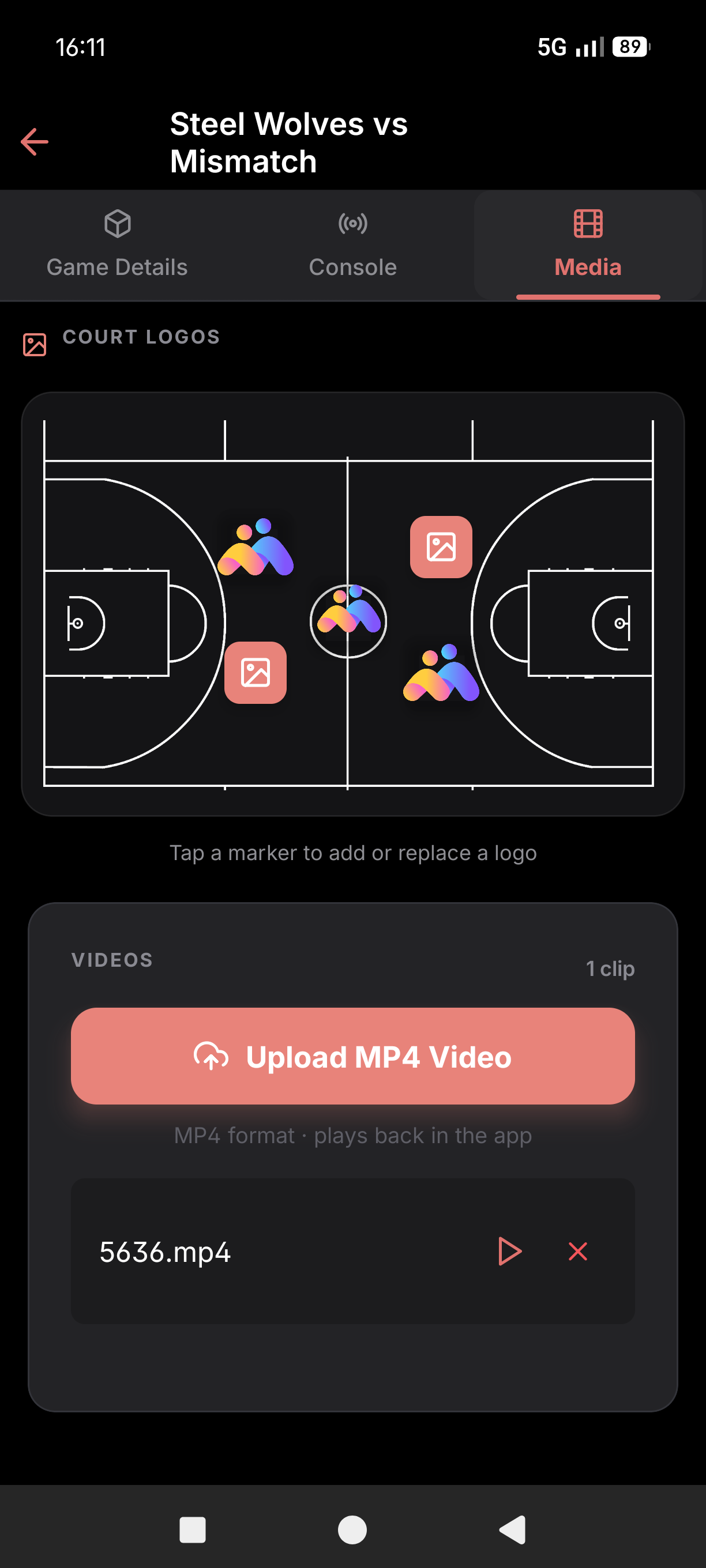
Section titled “Editing During Stream”Use the Media tab in the event details screen to update logos and sponsor graphics while the stream is running.
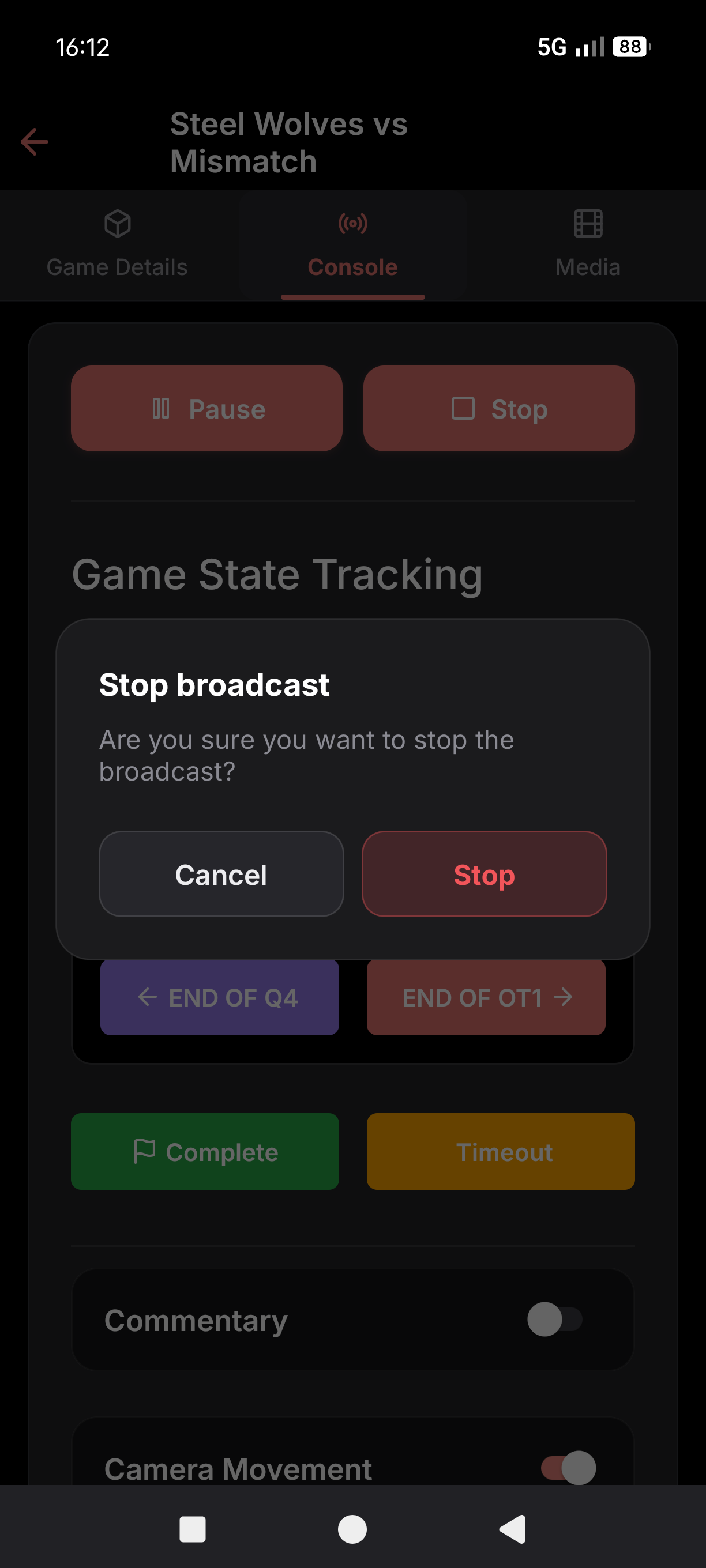
Stopping the Stream
Section titled “Stopping the Stream”Tap “Stop” in the Console tab and confirm when prompted. The stream ends and the recording is saved automatically.