

Streaming Destinations
Mismatch Streaming can broadcast directly to your YouTube channel, or to any other RTMP-compatible destination. Two integration methods are available, each with different levels of automation for event creation and control.
Important: Before you can livestream to YouTube for the first time, you must enable live streaming on your channel:
- Navigate to YouTube
- Click the “Create” icon in the top-right corner
- Choose “Go live”
- Complete the channel verification process
- Wait up to 24 hours for your first livestream to be enabled
This is a YouTube requirement for all new channels. Once you’ve completed this initial setup, you can start streaming immediately for all future events.
Integration Methods
Section titled “Integration Methods”You can connect to YouTube using two methods:
Method 1: YouTube Channel Connection (Recommended)
Section titled “Method 1: YouTube Channel Connection (Recommended)”Connect your YouTube channel directly to Mismatch for a seamless experience:
- On Mismatch platform, navigate to Organization Settings → Apps
- Click “Sign in With Google”
- Select your Google account
- Authorize Mismatch to access your YouTube channel
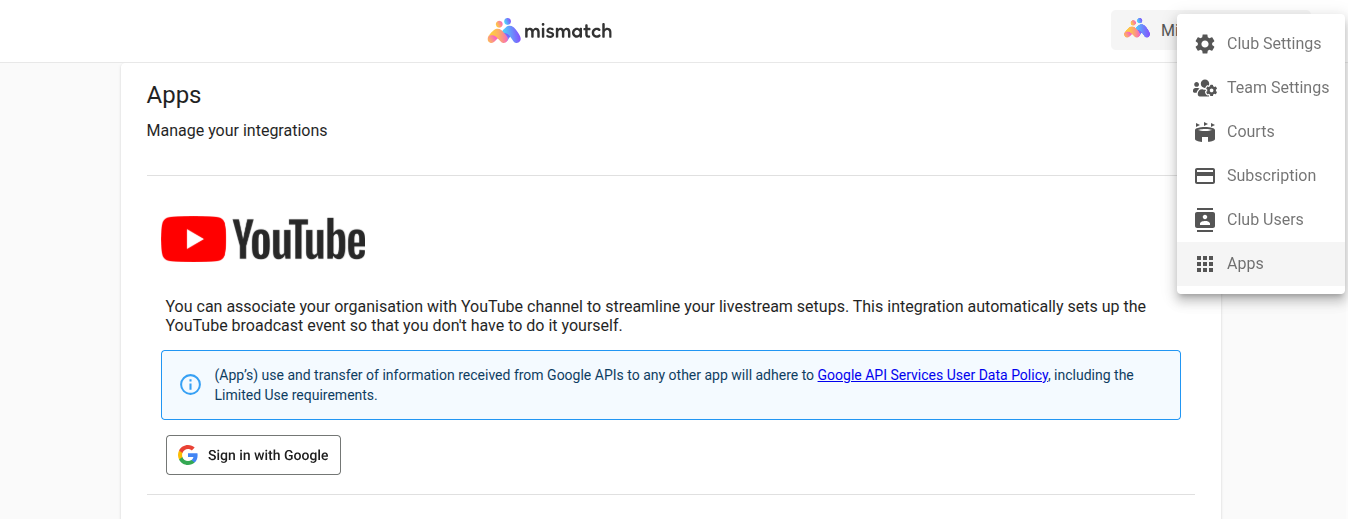
YouTube channel connection with Mismatch platform
Once connected, Your YouTube appears as a destination option when scheduling a game (see Schedule Your First Game).
Benefits of Channel Connection:
- Automatic event creation: YouTube events are created automatically when you schedule a game
- Auto-termination: YouTube events end automatically when you stop the stream
- Title & visibility management: Set video title and privacy settings (Private, Unlisted, Public) directly in Mismatch
- Thumbnail generation: Automatic thumbnail creation, or upload your own
- Simplified workflow: No need to manually create events or copy stream keys
When scheduling a game with channel connection enabled, you’ll see these options:
- YouTube Video Title: Custom title for your stream (or auto-generated from game info)
- User Visibility: Choose Private, Unlisted, or Public
- Upload Video Thumbnail: Upload custom thumbnail (optional - auto-generated if not provided)
Method 2: Custom RTMP
Section titled “Method 2: Custom RTMP”Use this method if you prefer manual control, want to stream to a destination other than YouTube, or need to stream to more than one destination at once. In the event’s streaming settings, select the Custom RTMP destination tab.
Custom RTMP has two options, and each one expects a different value in the field. A link underneath the field switches between them:
| Option | What to enter | Example |
|---|---|---|
| Use YouTube server (default) | The stream key on its own | xxxx-xxxx-xxxx-xxxx-xxxx |
| Stream to a custom server | The full RTMP URL (server ingest address + stream key) | rtmp://live.twitch.tv/app/live_123456_abcdef |
Option 1: Use YouTube server (default)
Section titled “Option 1: Use YouTube server (default)”The field is labelled YouTube and expects only the stream key: a private code that identifies which of your channel’s live broadcasts the video belongs to. Mismatch already knows YouTube’s server address, so the key on its own is enough.
-
Go to YouTube Studio
-
Click “Create” → “Go Live”
-
Set up your live event details
-
Copy the Stream key from the Stream Settings tab
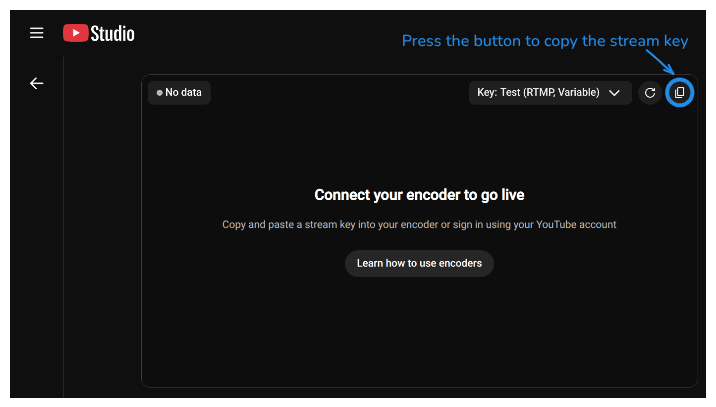
The copy button next to the Key field on the Go Live screen
-
In Mismatch event settings, paste the stream key in the designated field
Because you created the event on your channel, also check the recommended YouTube settings below before the game starts.
Option 2: Stream to a custom server
Section titled “Option 2: Stream to a custom server”Click “Stream to a custom server” underneath the field to stream to a platform other than
YouTube, such as Twitch, Facebook, or your own media server. The field now expects the full
RTMP URL, starting with rtmp:// or rtmps://: the platform’s server (ingest) address and
your stream key joined into one string.
In rtmp://live.twitch.tv/app/live_123456_abcdef, the server address is
rtmp://live.twitch.tv/app and the stream key is live_123456_abcdef.
Get both parts from that platform’s own streaming or dashboard settings.
This option also works for YouTube if you prefer to enter the full address yourself. The
equivalent of the stream key in Option 1 is
rtmp://a.rtmp.youtube.com/live2/xxxx-xxxx-xxxx-xxxx-xxxx.
To go back to entering a YouTube stream key, click “Use YouTube server” underneath the field.
Recommended YouTube settings for events you create yourself
Section titled “Recommended YouTube settings for events you create yourself”These settings apply whenever the YouTube broadcast was created by you rather than by Mismatch, with either of the two options above. In YouTube Studio, open the scheduled event and expand Additional settings in the stream settings panel:
- Enable Auto-start. YouTube then goes live on its own as soon as it starts receiving video from Mismatch, so nobody has to press “Go live” at tip-off. Leave it off only if you want to choose yourself the exact moment the broadcast becomes visible to viewers.
- Disable Auto-stop. With Auto-stop enabled, YouTube ends the broadcast by itself if the video feed is interrupted even briefly, and that event cannot be resumed. With it disabled, a short disruption does not end the broadcast and the stream continues once the feed is back.
The trade-off of disabling Auto-stop is that you have to end the YouTube event yourself when the game is over. Mismatch cannot end a broadcast it did not create, so auto-termination is only available with Method 1: YouTube Channel Connection.
Use Custom RTMP when:
- You want to manually control YouTube event settings
- You’re streaming to a platform other than YouTube
- You need to stream to multiple destinations simultaneously (see below)
- You’re using a different YouTube account for specific events
Streaming to a Second Destination
Section titled “Streaming to a Second Destination”Regardless of which method you used for the first destination, you can stream to a second destination at the same time. Click “Add RTMP URL” in the event’s streaming settings and fill in the Extra RTMP URL field, for example your organisation’s YouTube channel and a sponsor’s Twitch channel simultaneously.
The extra field has no option switch, but it follows the same rule as the two options above:
enter a stream key on its own and it is sent to YouTube, or enter a full rtmp:// URL
for any other destination.
Troubleshooting YouTube Connection
Section titled “Troubleshooting YouTube Connection”Stream won’t start on YouTube:
- Verify your YouTube account is activated for live streaming (24-hour wait after verification)
- Check that your YouTube channel is still linked to Mismatch platform (Organization Settings → Apps)
- If using Method 2: Custom RTMP to stream to YouTube, ensure that the YouTube event was scheduled manually by you on your YouTube channel. If the scheduled YouTube event was not set to auto-start, you need to start it manually.
- Verify stream key was copied correctly without extra spaces
- Check that the value matches the Custom RTMP option you selected: a stream key on its own
under Use YouTube server, or a full
rtmp://URL ending in your stream key under Stream to a custom server. A server address with no key at the end, such asrtmp://a.rtmp.youtube.com/live2, will not start the stream
Broadcast ended by itself during the game:
- The YouTube event most likely had Auto-stop enabled and the video feed was interrupted. Disable Auto-stop under Additional settings on the event (see Recommended YouTube settings)
Auto-termination not working:
- Only available with YouTube Channel Connection (Method 1). An event you created yourself has to be ended by you on YouTube
- Check that Google authorization hasn’t expired
- Manually end the YouTube event if auto-termination fails