

The Create tab (club)
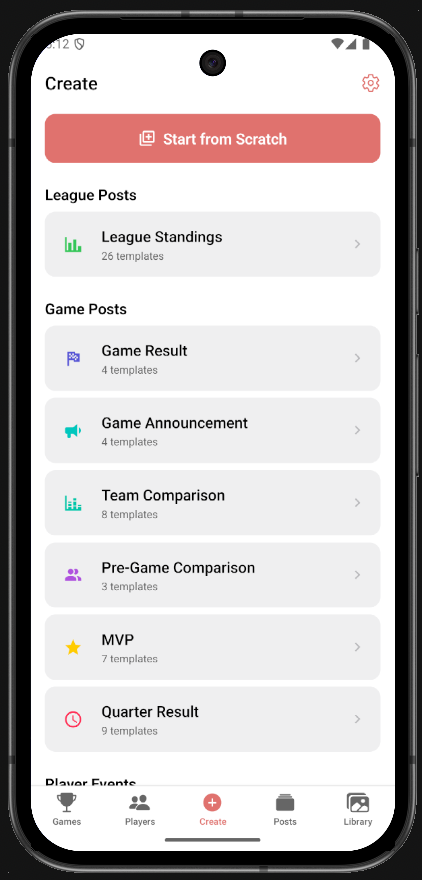
Post creation starts on the Create tab. It lists the post types in groups. Picking one leads to the game, gameday or player the post is about, then to the templates for it. The chosen template opens in the editor with the data already in place.
The Create tab (club)
The template list
A post about one game. The app first asks which game.
| Post type | What it shows | Fits games that are |
|---|---|---|
| Game Announcement | The two teams and when they play. | Upcoming |
| Pre-Game Comparison | The two teams side by side before tip-off. | Upcoming |
| Quarter Result | The score so far, quarter by quarter. | Live or completed |
| Game Result | The final score. | Completed |
| Team Comparison | The two teams’ game statistics side by side. | Completed |
| MVP | The game’s top performer, by efficiency rating (PIR), with their statistics. | Completed |
The game picker offers two ways to reach a game:
A club sees only its own team’s games.
Posts about a whole gameday or the standings. The app asks for the group (when the stage has more than one) and the gameday.
| Post type | What it shows |
|---|---|
| Gameday Schedule | The games of a gameday, with their date and time. |
| Gameday Results | The results of a gameday’s games. |
| Gameday MVP | The top performer across the gameday’s games, by efficiency rating (PIR). |
| League Standings | The standings table of a group. |
Schedule, results and standings templates exist in versions for different numbers of rows, and the app shows the ones that fit the gameday’s games or the group’s teams. The number of rows can be trimmed before picking a template, to leave out the bottom of a table for instance.
A club sees only League Standings here: its own games are covered by the game posts.
Player Birthday, Player Signing and Player Renewal. The app asks for the player, found by name in a search across the season’s players. The post carries the player’s details; a photo is added in the editor, from the phone’s camera roll or the Library.
General templates are not tied to a game or a player: announcements, thank-yous and the like. They go straight to the template list. Start from Scratch opens an empty page in the editor, with no template and no data.
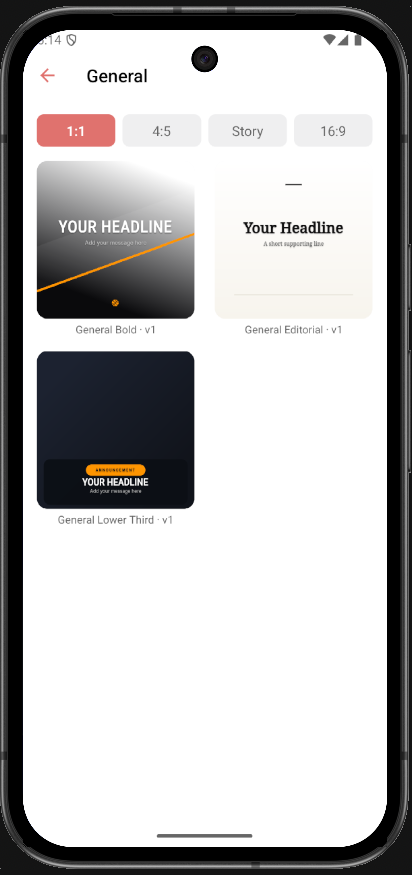
The template list shows one card per design for the shape selected at the top:
| Shape | Size | Used for |
|---|---|---|
| 1:1 | 1080 × 1080 | Square feed posts |
| 4:5 | 1080 × 1350 | Portrait feed posts |
| Story | 1080 × 1920 | Stories |
| 16:9 | 1920 × 1080 | Wide images, such as a page header |
Every design is drawn separately for each shape, so a story is not a square with room left over. The shape can still be changed in the editor, which loads that shape’s version of the same design.
The list holds the templates that come with the app for that post type, plus the organization’s own: any post can be changed in the editor and saved as a template of the organization. For quarter posts, the app picks the regular, overtime or double-overtime variant from the number of periods the game actually had.
Tapping a template opens it in the editor, filled with the data of the game, gameday, standings or player chosen on the way.