

Editing a Post
The editor opens with the chosen template filled in. The post can be published as it is, or changed first. Everything on a page is an element that can be selected, moved, restyled or removed, and new elements can be added.
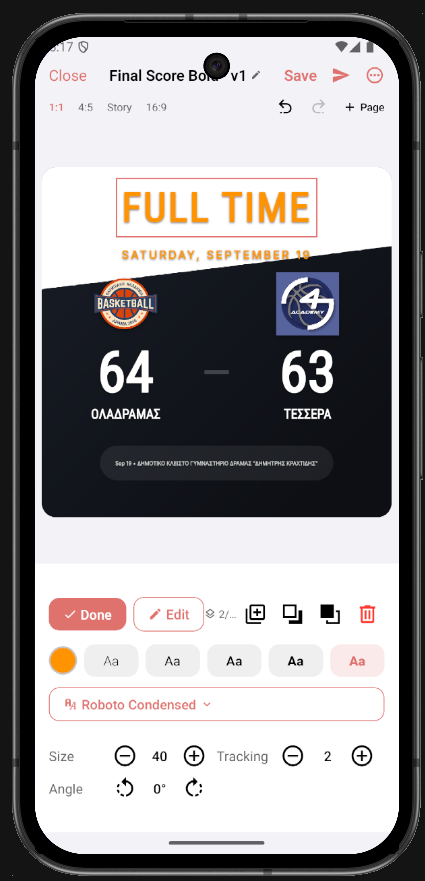
A post has one or more pages. Dots under the canvas show the pages; arrows and swiping move between them.
- Add Page adds a blank page, or a page from a template (the same post type groups as the Create tab, so a result post can get a comparison page after it).
- A page can be duplicated or deleted.
- A feed post holds up to 10 pages and publishes as a carousel. A story holds one page.
Shape and post type
Section titled “Shape and post type”The shape (1:1, 4:5, Story or 16:9, in the row above the canvas) can be changed in the editor. Switching loads that shape’s version of the design. If the page has been edited, the app asks whether to keep the edits or load the new layout; either way the change can be undone.
Choosing story sets the shape to 9:16 and removes the caption, since stories carry none.
Elements
Section titled “Elements”The toolbar under the canvas adds elements:
| Tool | Adds |
|---|---|
| Text | A text box. |
| Icon | An icon from a categorized picker. |
| Data | A field from the post’s data: a team name, a score, a player’s statistic. Available when the post was made from a game, gameday, standings or player. |
| Media | A photo, from the phone’s camera roll or from the Library. |
| Shape | A rectangle, circle, line, triangle or other shape. |
Tapping an element selects it; tapping again where elements overlap cycles through them. A selected element can be:
- dragged, with guides that snap it to the centre of the page and to other elements;
- rotated with two fingers;
- resized from its handles;
- restyled from the panel that appears: size, colour, opacity, corner radius, letter spacing, angle, and for text the font (Inter, Manrope, Roboto Condensed, Noto Serif, EB Garamond or JetBrains Mono).
Colours are picked from a spectrum with a hue strip, by hex value, or from presets.
Each page keeps its own undo and redo history.
Photos
Section titled “Photos”Every imported photo goes through a crop step first. On the page, a photo can be resized from its corners, keeping its proportions, and a photo used as the page background can be zoomed and panned.
Remove background cuts the subject out of a photo, so a player can be placed over the design without their surroundings. It runs on the phone. On Android the full model has to download once; until then, and on iPhones running iOS 15 or 16, only people can be cut out. Template graphics that came from the server cannot be cut out.
Identity colours
Section titled “Identity colours”Use Identity Colors in the editor’s ⋯ menu applies the organization’s own colours (set under Settings → Identity) to the design. It is on by default, so posts come out in the team’s colours; turn it off when the design’s own palette suits the post better.
Drafts
Section titled “Drafts”Save keeps the post as a draft on the phone, with its pages, caption, post type and shape. Drafts live on the Posts tab, newest first, with a thumbnail, title and last-edited time. The tab can be filtered by post type, and by Multi for multi-page posts. Tapping a draft shows a preview with Edit and Delete; a draft can also be published from there.
Drafts are stored on the phone and are not shared between devices or users.
Saving a template
Section titled “Saving a template”Save as Template in the ⋯ menu stores the current design as a template of the organization. It then appears in the template list for its post type, next to the templates that come with the app, for every user of the organization.
Exporting
Section titled “Exporting”Export Pages in the ⋯ menu renders every page to a PNG at full resolution and saves it to the phone: the Downloads folder on Android, the Files app under On My iPhone → PicknPost on iOS. Files are named after the post, with a page number when the post has more than one page.
The Library
Section titled “The Library”The Library tab is the organization’s photo library in the app, kept per season. Add Photos imports pictures from the camera roll. Each photo can be tagged with the games, players and teams it shows, and the library can be searched by them. In the editor, Media → App Library picks from this library, pre-filtered to the post’s game when it has one.
The library is stored on the phone.