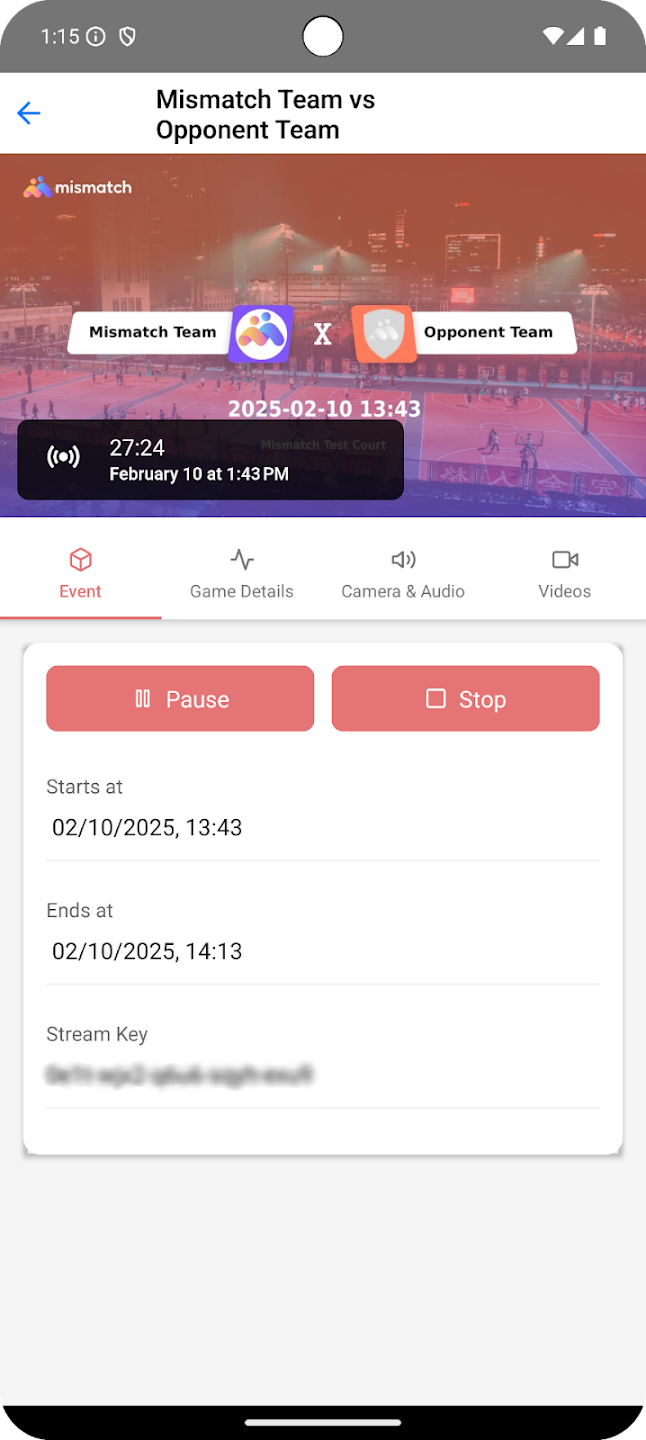

Games list screen
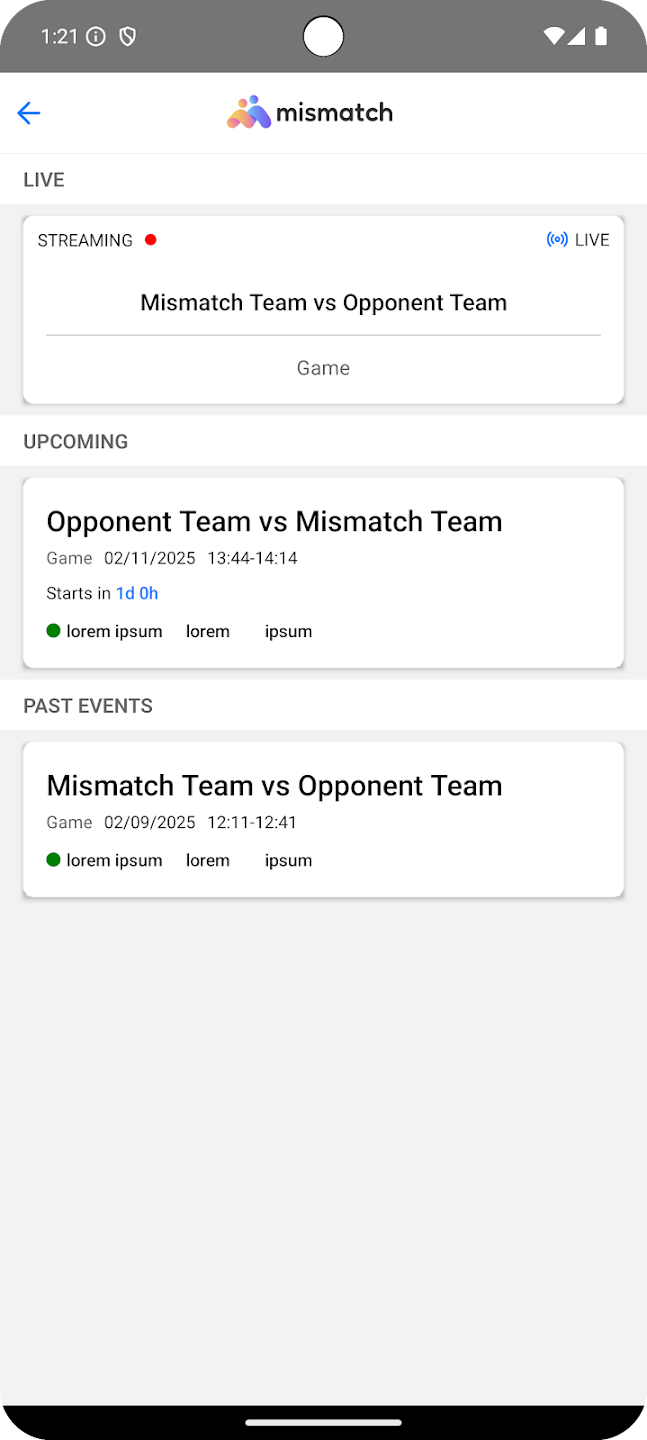
Control your live streams in real-time from the calendar interface and mobile app.
You can start streams automatically at scheduled times or manually when needed.
Automatic Start:
If you enabled Auto-Start in the event settings (see Streaming Settings):
Manual Start:
To start a stream before the scheduled time or when Auto-Start is disabled:
Note: Allow at least 5 minutes for initialization before the actual start time you need.
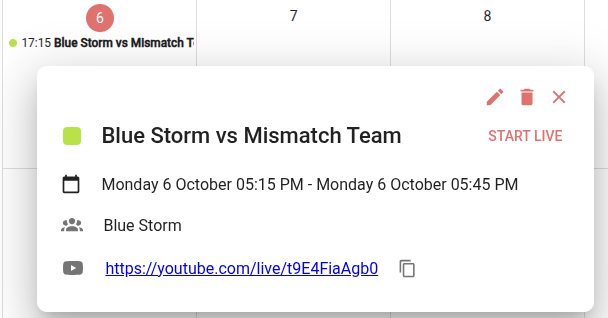
Event details popup
When a stream is active, a control panel appears on the right side of the screen displaying stream status and control options.
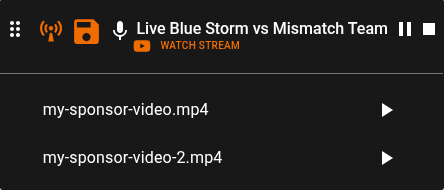
Live stream control panel with status and control buttons
Stream Status Indicators:
The panel header displays:
Control Buttons:
Local commentary icon: (Pro streams with local commentary enabled) Toggle between ambient (camera microphone) and local commentary (external microphone) audio. When the icon is orange, local commentary is enabled.
“WATCH STREAM” button: Opens the embedded video player to view the live stream directly in the Mismatch platform.
Pause icon: Pauses the stream. When paused, a “paused” banner image is displayed to viewers instead of the live game feed. Click again to resume.
Stop icon: Stops the stream and ends the event.
Advertisement Videos: (Pro streams only)
Below the control buttons, all uploaded sponsor videos are listed. Each video has a Play icon button next to it:
Best times to play advertisement videos:
You can modify event details even while streaming:
This allows you to fix mistakes or add missing information without stopping the stream.
Manual Stop:
Automatic Stop:
After stopping, the recording is processed and becomes available for viewing within a few minutes.
The Mismatch Streaming mobile application provides remote control and monitoring of your streams.

Available Functions:
The mobile app is useful for controlling streams remotely when you cannot access the web platform, such as when managing streams from courtside.
Games list screen
Settings and controls