

For Administrators
This page is for organisation administrators. Setting up commentary with Studio is one step: assign a user as the studio operator for the games they will commentate.
Studio is included with the Pro streaming tier. Any member of your organisation can be assigned as a studio operator.
Assign a studio operator to a game
Section titled “Assign a studio operator to a game”The studio operator is the user who commentates a specific game. You assign them in the game’s streaming settings.
When you create or edit a game with a Pro livestream, a Studio Operator field appears in the streaming settings (see Schedule Your First Game). Select the user who will commentate. The list contains the users in your organisation.
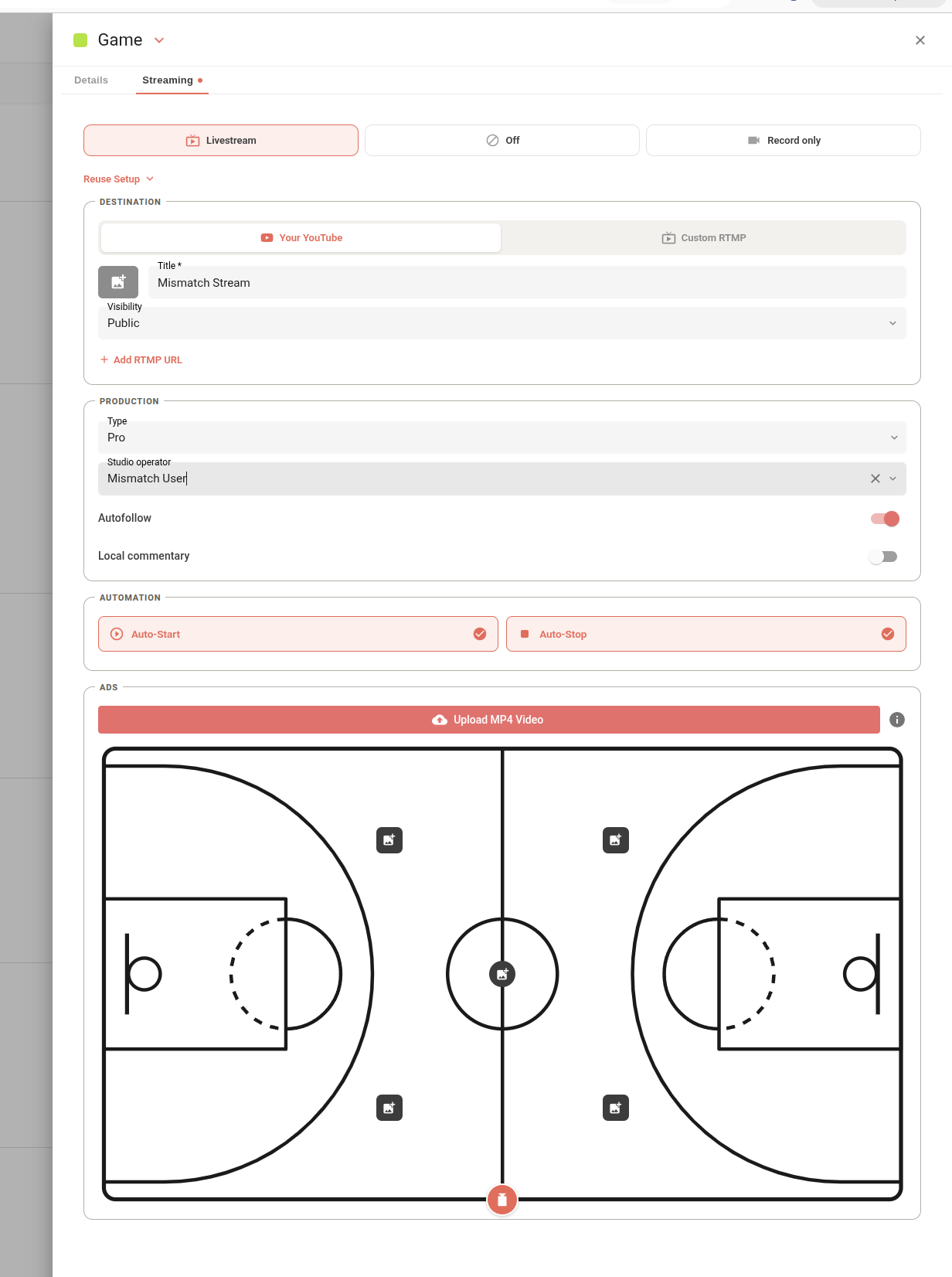
The assigned user then sees that game in their Studio games list and can commentate it once it goes live (see Commentating a Game).
Change the operator on a running stream
Section titled “Change the operator on a running stream”You can change the studio operator at any time before and during the stream by editing the game, for example to hand a game over to a different studio operator. The new operator picks up the game from their own Studio games list.
While a stream is live it must keep an operator: you can switch to a different user, but you cannot leave the field empty. Once a stream has ended, the operator can no longer be changed.