

Schedule Your First Game
The calendar is your main interface for scheduling and managing streams.
Accessing the Calendar
Section titled “Accessing the Calendar”- Log in to the Mismatch platform
- The main screen displays the calendar view
- Switch between organizations using the selector at the right corner in the top bar
- Filter by team using the left sidebar
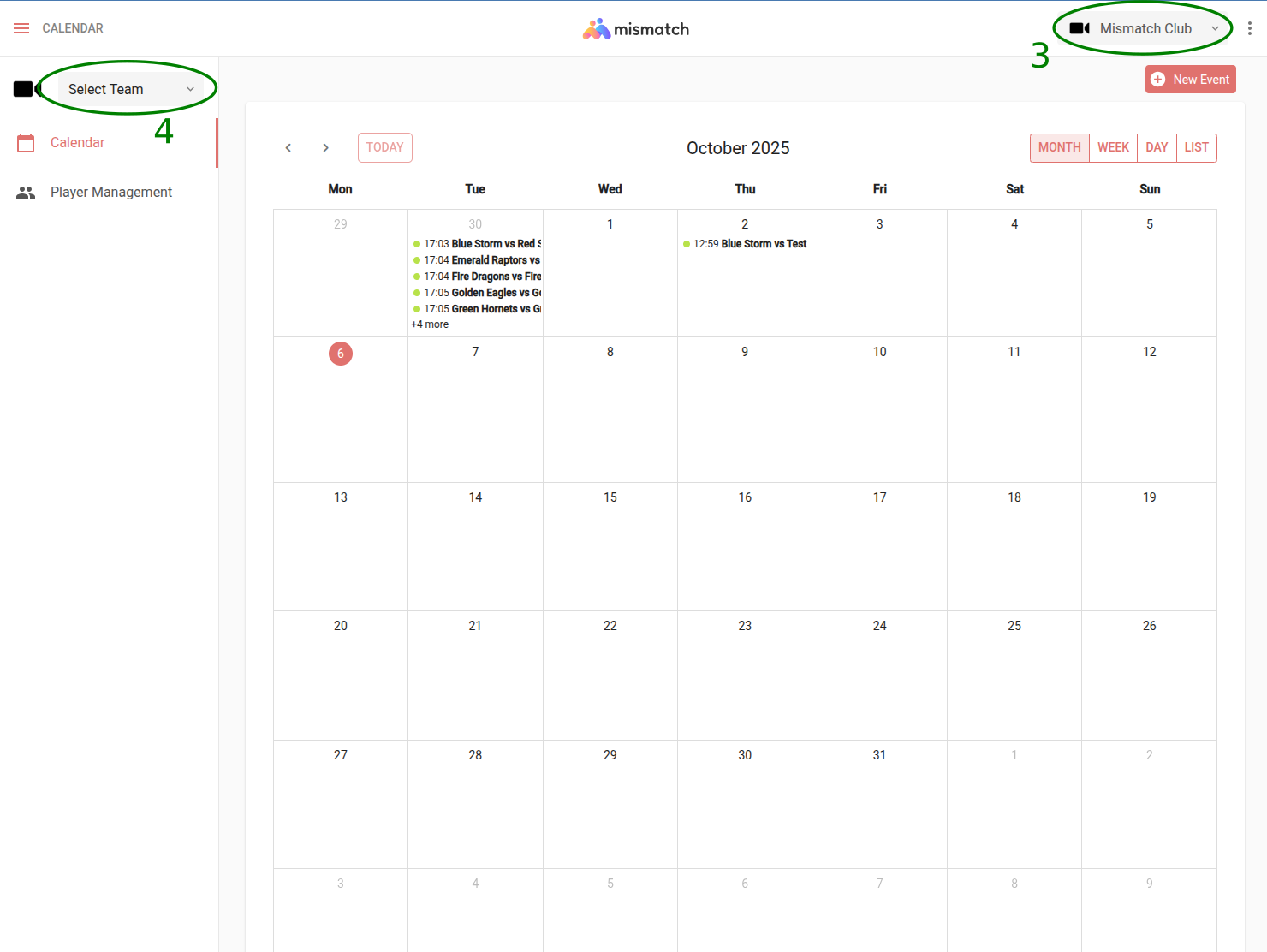
Organization / Club calendar view
Creating a Game Event
Section titled “Creating a Game Event”- Click on a date in the calendar, or click the “New Event” button
- Select the event type:
- Game: Events with full streaming capabilities (Lite, Plus or Pro tier)
- Practice: Training sessions limited to Lite tier streaming only
Fill in the event details:
- Date: Select the game date
- Start Time: When the stream/recording should begin
- End Time: When the stream/recording should end
- Court Name: Select court
- Team: Select the two teams playing. Click the house icon on a team’s row to mark it as the Home team; the other is Away
- Competition: Optional League or Tournament logo and name
- Notes: Optional additional information
- Streaming via a 3rd party provider?: Optional. Expand this when a separate camera crew or production company is producing the broadcast instead of Mismatch. This is different from choosing Custom RTMP as your destination below, which still uses Mismatch’s own cameras and production; it just sends the output somewhere other than YouTube
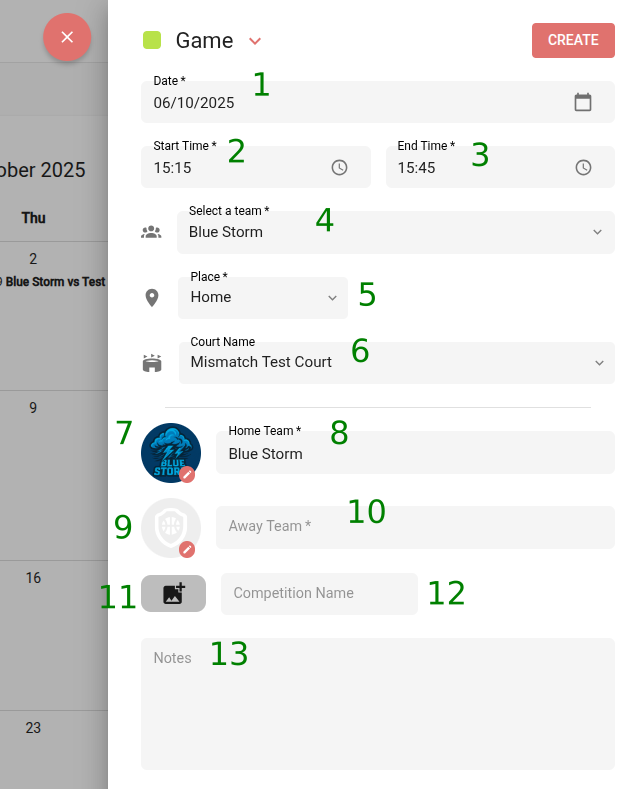
Game event creation form with basic settings
Streaming Settings
Section titled “Streaming Settings”If the selected court has Mismatch Streaming equipment installed, additional options appear. Items below marked Plus or Pro only apply if you selected that tier in step 4; skip them if you’re on Lite:
-
Stream Mode: Toggle between Livestream, Off, or Record-Only
-
Reuse Setup: Reuse streaming configuration from a previous game
- Select a previous setup to apply the same configuration (destination, video ads, sponsor logos, etc.)
- You can modify any loaded settings before creating the event
-
Destination: (Only displayed in Livestream stream mode) Select Your YouTube or Custom RTMP, and optionally add a second destination at the same time. See Streaming Destinations for how each option works, including whether the field expects a stream key on its own or a full RTMP URL, and where each platform keeps its stream key
-
Type: Select Lite, Plus or Pro based on your needs (see Streaming Tiers)
-
Studio operator: Assign the user who will commentate this game with Studio (see For Administrators). Only shown for Pro livestreams, not available for Record-Only events
-
Local commentary: Toggle on to take commentary from a microphone at the venue, plugged into the camera. Off by default, only shown for Pro streams, and available whether you’re livestreaming or recording only. The camera’s audio source is switched when the stream starts
-
Auto-Start/Auto-Stop: Available whether you’re livestreaming or recording only
- Enable to automatically start/stop the stream at scheduled times
- When auto-start is enabled, system begins initialization 10 minutes before start time. Actual stream starts approximately 5 minutes before scheduled time
- Important: Manual start at exact scheduled time will take ~5 minutes due to initialization
- Maximum stream duration is 4 hours. After that the stream will automatically stop regardless the state of the auto-stop option (enabled or not).
-
Video Advertising: Upload promotional videos to play during the stream. Only shown for Pro streams, available whether you’re livestreaming or recording only
- Click “Upload MP4 Video” to add advertisement videos
- Only MP4 file formats with audio are supported
- Videos are saved to the event and available to play during the stream
- Access and play ads from the stream control panel during timeouts, halftime, or breaks
- Keep ads short (15-30 seconds) for better engagement
-
Sponsor Logos: Only shown for Plus and Pro streams, available whether you’re livestreaming or recording only
- Use the court diagram to add sponsor or partner logos at five court positions
- Click the corresponding icon at any position to upload a logo (PNG files with transparent background recommended)
- You can move, scale, rotate and remove an uploaded logo
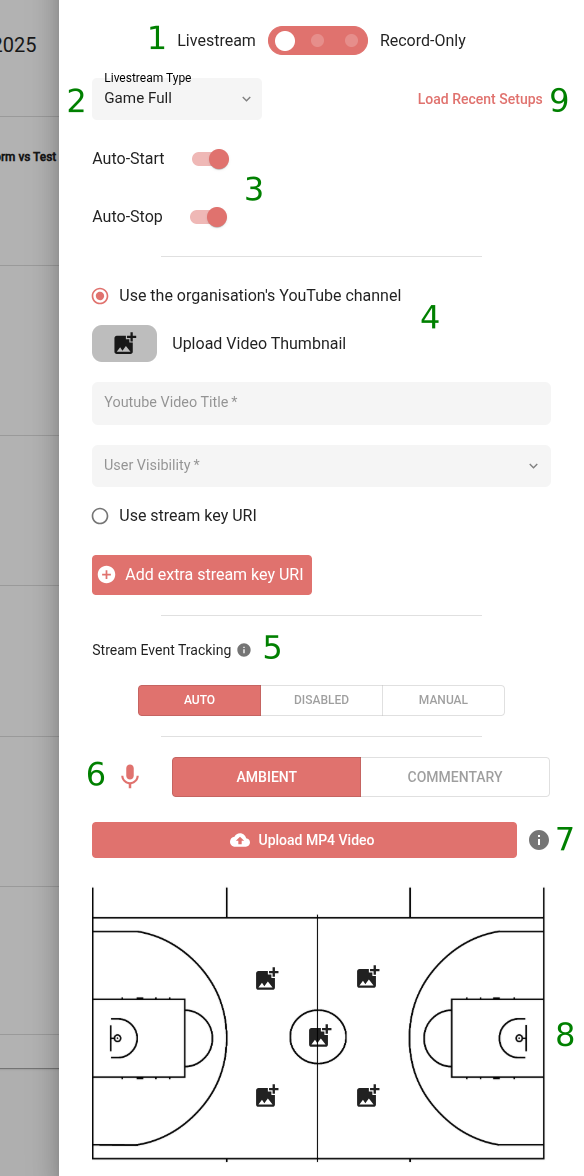
Streaming configuration options
Saving the Event
Section titled “Saving the Event”Once you have configured all the event settings:
- Click the “CREATE” button to save the event
- The event will appear on the calendar at the scheduled date and time
- You can edit the event configuration at any time before the event starts by clicking on the event in the calendar
- Make your changes and click “SAVE” to update the event settings