

User Management
Control who has access to your organization and what they can do within the platform.
User Roles
Section titled “User Roles”Organization-Level Roles:
- Admin: Full read/write access to all organization settings, teams, and events. Can manage users, configure settings, and control all streaming operations.
- Member: Access limited to specific teams within the organization. Permissions set by administrators.
Team-Level Roles:
- Team Manager: Full read/write access to specific team. Can schedule games, manage streams, and modify team settings.
- Team Member: Read-only access to specific team. Can view schedules and watch streams but cannot make changes.
Inviting Users
Section titled “Inviting Users”- Navigate to Organization Settings by clicking the organization name in the top bar
- Click “Club Users” in the settings menu
- Click the “INVITE” button
- Enter the user’s email address
- Select User Permissions (which features they can access, e.g., Livestream, Stats)
- Choose Organisation Role: Admin or Member
- If selecting Member:
- Choose which teams they can access
- Set their Team Role (Team Manager or Team Member) for each team
- Click “INVITE”
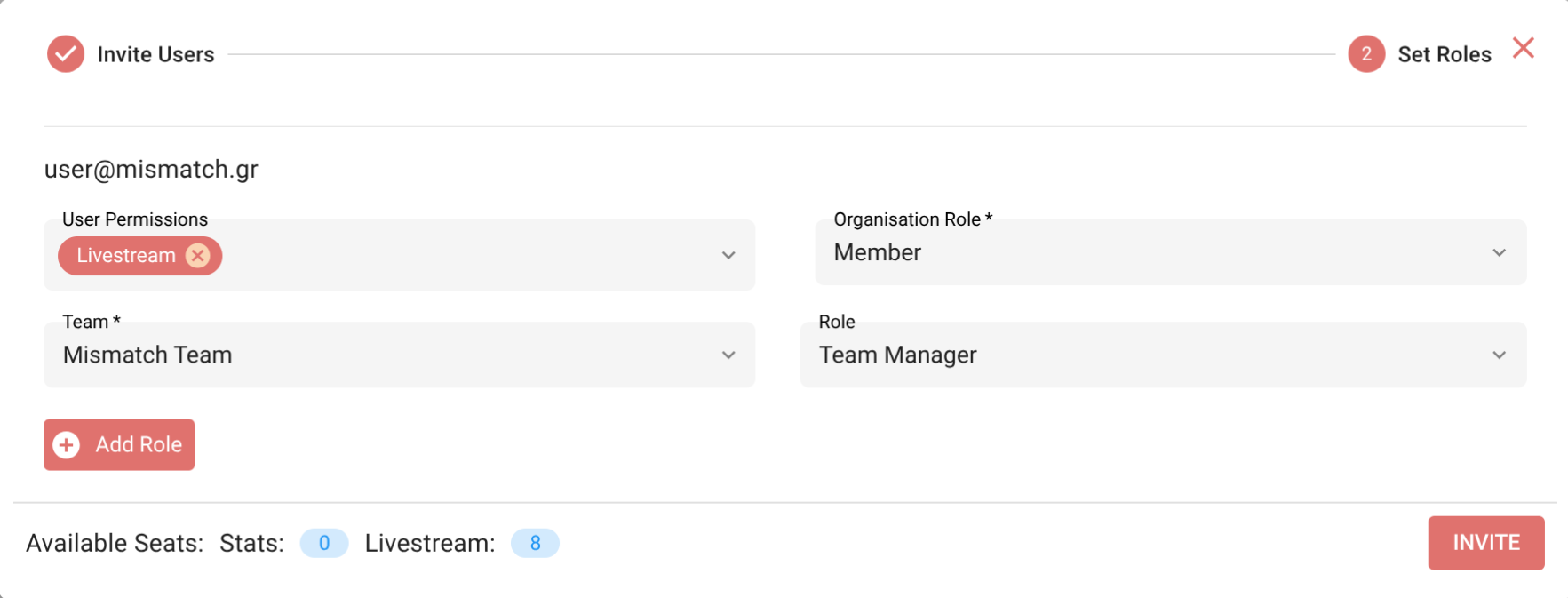
User invitation form with role and permission settings
The user receives an email invitation to join your organization. They can accept the invitation and log in with their email credentials.
Managing Existing Users
Section titled “Managing Existing Users”In the “Club Users” section, you can:
- View all active users and pending invitations
- See each user’s role and team assignments
- Modify user permissions by clicking the edit icon
- Remove users from the organization